

If you write a lot—docs, tickets, long-form content, or code comments—your keyboard becomes a bottleneck. Dictation flips the workflow: you speak, the text appears where your cursor is, and you keep going.
What changed recently is that speech-to-text is no longer a “cloud-only” toy. With tools like Whisper and projects built around it, you can get high accuracy, multiple languages, and fast turnaround on Linux. The missing piece is usually ergonomics: starting and stopping recordings quickly, pasting reliably into any app, and avoiding the “I need to open a website to transcribe” friction.
That’s where hyprwhspr comes in. It’s a Python tool that can run Whisper locally, but also send audio to a remote transcription endpoint—perfect if you want GPU speed without maintaining your own GPU box. In this guide, you’ll configure hyprwhspr to use Regolo’s audio transcription endpoint, choose the model (we’ll use faster-whisper-large-v3), and wire everything up so dictation becomes a single keyboard shortcut.
If you want to try the same setup on your infrastructure with strong data controls, you can spin up a Regolo trial and plug the API key into hyprwhspr in a couple of minutes.
What is hyprwhspr (and why it’s great on Linux)
hyprwhspr is a small but opinionated dictation workflow for Linux:
- It records audio on demand
- It transcribes using Whisper (local or remote)
- It inserts the resulting text at the cursor position (so it works in editors, browsers, chat apps, and IDEs)
The “Linux-native” part matters. Instead of living inside one app, hyprwhspr can run as a system service and react to keyboard shortcuts, which makes dictation feel like a real input method rather than a separate tool.
Why connect hyprwhspr to Regolo
You can run Whisper locally, but the experience depends heavily on your hardware. Larger Whisper variants are accurate but can be slow on CPU-only machines, and not everyone has a spare GPU available.
Using Regolo as the remote transcription backend gives you a practical middle ground:
- Fast transcription thanks to on-demand GPU infrastructure
- Simple API-based integration (you only set endpoint, model, and key)
- Privacy-first positioning (Zero Data Retention, EU-resident infrastructure, data controls designed for enterprise use)
In other words, you keep the lightweight Linux workflow while outsourcing the heavy compute.
Install hyprwhspr
hyprwhspr supports multiple installation paths depending on your distro and preferences. Follow the project’s Quick Start and pick the method that best fits your environment:
After installation, verify the CLI is available:
hyprwhspr --helpIf the command is found, you’re ready to configure the transcription backend.
Configure hyprwhspr to use Regolo (setup walkthrough)
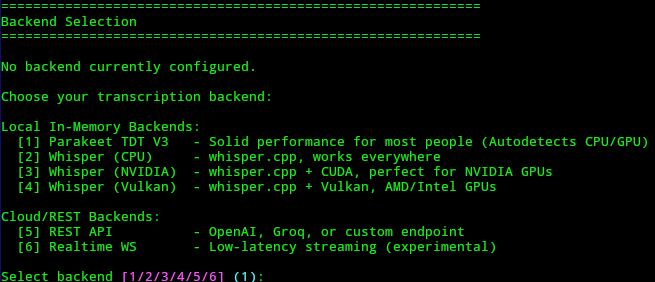
hyprwhspr includes an interactive setup that generates your config file and can also store your API key.
hyprwhspr setupIf the command is found, you’re ready to configure the transcription backend.
During setup, you’ll go through a few choices. In the flow described here:
Choose option 5 when prompted for the backend/provider option

Then choose option 3 to enter a custom host
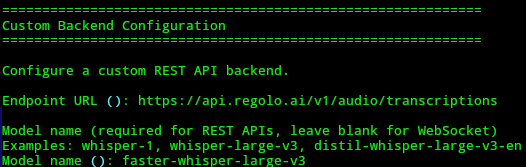
When hyprwhspr asks for the host/endpoint, use Regolo’s transcription endpoint:
https://api.regolo.ai/v1/audio/transcriptionsCode language: JavaScript (javascript)When it asks for the model name, set:
faster-whisper-large-v3
Then hyprwhspr will ask about your API key. Confirm you want to add it, paste the key, and hyprwhspr will save it so you don’t have to export environment variables every session.
If you’re rolling this out in a team, consider using your OS secret store or a controlled deployment approach, but for a personal workstation the saved key is the quickest path.
Edit the config.json for a clean daily workflow
After setup, open the configuration file:
nano ~/.config/hyprwhspr/config.jsonCode language: JavaScript (javascript)This file is where you’ll fine-tune how dictation starts, stops, and which languages you want available.
A practical configuration approach is:
- Set your default dictation language (your most common language)
- Configure an alternate language so you can switch quickly
- Decide how you want shortcuts handled (daemon “grab keys” vs desktop environment shortcuts)
- Enable audio ducking for better recordings when other audio is playing
Your exact JSON keys may differ slightly depending on hyprwhspr version, so use the file as the source of truth and adjust the fields that already exist.
How the systemd daemon and shortcuts work
When you install hyprwhspr, it also enables a systemd user daemon. That’s important because it means hyprwhspr can always be “ready,” and you only decide when to start recording.
You have two main ways to trigger recording:
- Use “grab keys” mode, the daemon listens for the shortcut combinations configured in
primary_shortcutandsecondary_shortcut - Configure your desktop environment (GNOME, KDE, Hyprland, Sway, etc.) to run hyprwhspr commands on hotkeys (as example)
The first approach keeps everything inside hyprwhspr. The second approach is often more predictable across different Wayland setups because your compositor or DE owns the shortcut system.
Why there are primary and secondary shortcuts (dual-language dictation)
hyprwhspr supports two shortcut profiles so you can dictate in two different languages. This improves accuracy because the model doesn’t have to guess the language every time, and you avoid mixed-language “hallucinated” words in proper nouns or technical terms.
In the config you’ll typically see something like:
language: your default languagesecondary_language: your alternate languageprimary_shortcut: starts dictation in the default languagesecondary_shortcut: starts dictation in the secondary language
If your secondary_language is set to Italian (it), you can explicitly start recording in Italian like this:
hyprwhspr record start --lang itIf you omit --lang, hyprwhspr will use whatever is set in language.
When you finish speaking, stop the recording:
hyprwhspr record stopAfter you stop, hyprwhspr sends the audio for transcription and then inserts the resulting text where your cursor is. The wait is usually a few seconds, and it scales with how long the recording was.
Audio Ducking: better transcription while audio is playing
A surprisingly common dictation failure mode is background audio: music, YouTube, meetings, or even notification sounds bleeding into the mic.
hyprwhspr includes an “audio ducking” feature that lowers system playback volume when recording starts, then restores it when recording stops. In the config, enable:
audio_ducking: set totrue
This makes recordings cleaner with almost no effort, which usually means fewer mis-transcribed words and less post-editing.
If you frequently dictate while listening to content, audio ducking is one of the highest ROI settings you can turn on.
Local Whisper vs remote Regolo: what to choose
Both approaches are valid, and hyprwhspr supports both. Here’s a practical comparison to help you choose.
| Factor | Local transcription | Remote transcription with Regolo |
|---|---|---|
| Speed | Depends on your CPU/GPU | Consistent, GPU-backed |
| Setup | No API key, but heavier runtime deps | Simple endpoint + key |
| Privacy | Audio stays on device | Designed for privacy controls (e.g., Zero Data Retention), verify your org’s requirements |
| Cost | “Free” compute, but uses your power/time | Pay-as-you-go API usage |
| Portability | Works offline | Needs network connectivity |
If your laptop struggles with large models, or you want a smoother “press hotkey → text appears” experience, remote transcription is usually the best day-to-day setup.
⚡️ If you want the fastest dictation loop on Linux without managing GPUs, connect hyprwhspr to Regolo and test it on real writing tasks. Start with a trial, then scale to production when the workflow proves itself.
Practical tips for a frictionless dictation workflow
A few small tweaks make dictation feel natural:
- Keep recordings short, stop every 15–45 seconds for faster turnaround and easier corrections
- Speak punctuation (“comma”, “period”) if your style requires it, then see what your model does consistently
- Create one shortcut for your main language and one for your secondary language to avoid language detection guesswork
- Dictate into any editor that handles paste/input cleanly, then refine with keyboard edits
Troubleshooting with hyprwhspr (common Linux issues)
If something doesn’t work on first try, it’s usually one of these.
The daemon is running, but shortcuts don’t trigger
Try switching from “grab keys” mode to DE-managed shortcuts. Let GNOME/KDE/Hyprland bind a key combo to:
hyprwhspr record starthyprwhspr record stop
This avoids edge cases where global key capture behaves differently on Wayland compositors.
Microphone permissions or device selection issues
Check:
- Your system sound settings (correct input device)
- PipeWire/PulseAudio permissions
- App sandboxing (Flatpak apps can complicate device access)
If recording produces silence, fix input first before debugging the API.
API errors or model not found
Double-check:
- Endpoint:
https://api.regolo.ai/v1/audio/transcriptions - Model:
faster-whisper-large-v3 - API key: correctly saved during setup, and not expired/rotated
Text doesn’t insert at cursor
Some apps handle simulated input differently. If insertion fails in one target app, test in a plain editor first (like a basic text editor), then adjust your workflow for the problematic app.
FAQ
Does hyprwhspr work on Wayland?
Yes, but shortcut handling can vary by compositor. If “grab keys” feels unreliable, bind shortcuts in your compositor/DE and call hyprwhspr record start and hyprwhspr record stop directly.
Why use two languages instead of auto-detect?
Explicit language selection usually improves accuracy and reduces weird word substitutions, especially if you mix English with Italian names, acronyms, or technical terms.
Where is hyprwhspr’s config file?
You can edit it at ~/.config/hyprwhspr/config.json.
How do I start dictation in Italian specifically?
If secondary_language is set to it, run hyprwhspr record start --lang it. Without --lang, hyprwhspr uses the default language.
What model should I set for Regolo in this setup?
Use faster-whisper-large-v3 as shown in the guide.
What is audio ducking and why enable it?
Audio ducking lowers your system playback volume while recording, then restores it after you stop. Cleaner audio usually means better transcription.
Is remote transcription slower than local?
On many laptops, remote GPU transcription is faster overall because local CPU transcription can take much longer, especially with larger models.
Can I use hyprwhspr fully offline?
Yes, if you configure it for local Whisper inference. The Regolo setup described here requires network connectivity.
- Regolo Discord – Share your thoughts
- GitHub Repo – Code of blog articles ready to start
- Follow Us on X @regolo_ai
- Open discussion on our Subreddit Community
🚀 Ready to scale?
Built with ❤️ by the Regolo team. Questions? support@regolo.ai or chat with us on Discord